
EN

If you plan to move your templates to a different directory, proceed as follows:

For organizations using the  Aligned Elements Windows Client

1. Copy the existing templates to the new directory.

2. Make sure all client computers have access to this directory, using the same path.

3. Open a Project where the current template set is used. Make sure that no-one else is currently logged in to the project! 

4. Go to Main Menu -> Projects -> Project Settings -> Paths and use the browse button to select the new Template directory.

5. Confirm and close the application. Verify that other users can open the project using the new template path without any problems.

6. It is good practice to get rid of the unused template location in order to reduce confusion.

For organizations using the  Aligned Elements Web Client

1. Copy the existing templates to the new directory.

2. Open the Web.config file and find the <elementsServerTemplate> section.

3. Change the value of the ServerRoot attribute to point to the new directory. Note! This must be a physical path! 

4. Open a Project where the current template set is used. Make sure that no-one else is currently logged in to the project! 

5. Go to Sidebar -> Settings -> Project Settings -> Paths -> Template Path and type in the new Template directory.

6. Save and close the application. Verify that the project can be opened using the new template path without any problems.

7. It is good practice to get rid of the unused template location in order to reduce confusion.
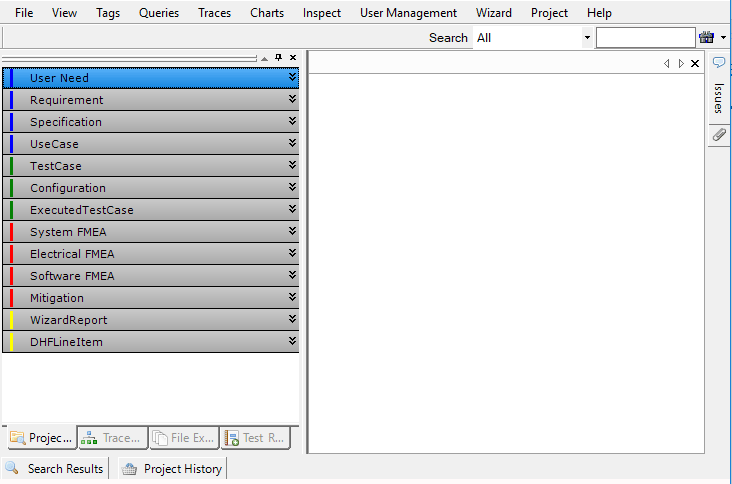
When Aligned Elements starts up, it is displayed with the visual appearance of Windows "classic" mode.

Reason: This behaviour is caused by the Windows Update KB4467702 (OS Build 17134.407), release date November 13th (the behaviour can be reverted by uninstalling the update).

WindowsClassic

The change in visual appearance has no impact on the Aligned Elements functions or the integrity of your data.

We are aware of this behaviour and we are currently working on a way to solve this visual appearance deviation.


Contact Aligned Support on This email address is being protected from spambots. You need JavaScript enabled to view it..

Try to deinstall the font and install it again. That usually solves this problem.

Your mail settings are probably not configured. Define your project's mail server parameters under Project->Project Settings. See the AE User Manual section 6.2 for details. Furthermore, you have to set the email address for each user. See the AE User Manual section 6.1 for details.

No, there is not.

No, currently all users that have access permissions to the document object type "Review" can access the review. See the AE User Manual section 6.1 for details.

In due time before the license expiration, you will automatically be sent a license update invoice. You do not have to explicitly contact us for license renewal.

If all the floating licenses are currently in use, the next user logging in will be notified that all floating licenses are currently in use.

At first log in

If you are logging in for the first time and have problems, we have detailed instructions in the user manual.

The most common situations for not being able to log in for the first time are:

Click on the situation that applies to you for explanations and troubleshooting steps.

In General or after resetting your password

If you have log in problems in general or, e.g. after resetting your password, there are instructions and tips available here.
The most common situations for not being able to log in are:

Where applicable, click on the situation that applies to you for explanations and troubleshooting steps.