EN

The “recovery pending" status may indicate that you are having the database to auto-close connections.

It should be on False for best performance.

If you are using SQL Server Express, it may default to Auto close true for all new databases. This can be changed in the 'Model' db.

There may be more info on why this happens in the SQL Server ERRORLOG found in a path similar to:

C:\Program Files\Microsoft SQL Server\MSSQL15.SQLEXPRESS\MSSQL\Log

If the database is still stuck in "recovery pending", restarting the SQL Server may alleviate the problem.

Check the database options 'Auto close' property:

autoclose


First, make sure that if the backup was made on a server with fulltext search switched on, the target server must also have fulltext search switched on. Furthermore, check that the user SQLSERVER2005MSSQLUSER$<yourusername>$SQLEXPRESS has write access in the MSSQL directory.

Due to windows security restrictions in Windows Aligned Elements cannot create the necessary folders for the offline databases. Try to manually create the path "C:/AlignedElements/Offline" and try again.

Open SQL Server Studio Manager and post the following two queries:

ALTER DATABASE "<the database name>" SET NEW_BROKER WITH ROLLBACK IMMEDIATE;

and then

ALTER DATABASE "<the database name>" SET ENABLE_BROKER;

Open SQL Server Studio Manager and post the following two queries:

ALTER DATABASE "<the database name>" SET NEW_BROKER WITH ROLLBACK IMMEDIATE;

and then

ALTER DATABASE "<the database name>" SET ENABLE_BROKER;


"The activated proc '[dbo].[SqlQueryNotificationStoredProcedure-<A-GUID>]' running on queue '.dbo.SqlQueryNotificationService-<A-GUID>' output the following: 'Cannot execute as the database principal because the principal "dbo" does not exist, this type of principal cannot be impersonated, or you do not have permission.'"

What should I do?

A: Open SQL Server Studio Manager and run the following query:

ALTER AUTHORIZATION ON DATABASE:: "<the database name>" TO AlignedElement;

If you now get a new error message indicating that the SqlQueryNotificationService couldn't locate itself, run the following queries:

ALTER DATABASE "<the database name>" SET DISABLE_BROKER;

ALTER DATABASE "<the database name>" SET NEW_BROKER WITH ROLLBACK IMMEDIATE;

and then

ALTER DATABASE "<the database name>" SET ENABLE_BROKER;

How to solve

1. Open the File Explorer and navigate to either “C:\Program Files (x86)\Aligned AG\Aligned Elements” or “C:\Program Files\Aligned AG\Aligned Elements for Word x64”

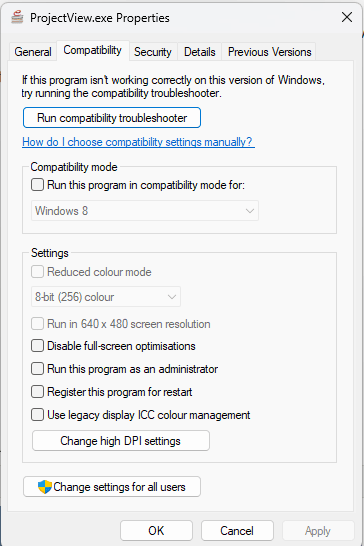
2. Find the file “ProjectView.exe” and right-click to select Properties. Click on the Compatibility tab.

ProjectExplorer exe Properties

3. Click on the ‘Change high DPI settings’ button

4. Un-check the ‘High DPI scaling override’ at the bottom. Click OK and OK. Reopen the Word document from Aligned.


High DPI Settings

If  ‘High DPI scaling override’ is set to e.g. System but is disabled, i.e. you cannot uncheck it, then do the following:

  • Click Cancel in the dialog ‘High DPI settings for ProjectView.exe’
  • In the dialog "ProjectView.exe"-Properties, click on the button ‘Change settings for all users’ at the bottom of the dialog
  • Now repeat: Click on the ‘Change high DPI settings’ button and uncheck ‘High DPI scaling override’. Click OK and OK. Reopen the Word document from Aligned.

Aligned Elements uses content controls in order to insert information in MS Word documents. The content of these content controls can be synchronized by clicking "Synchronize" or "Force Update" in either:

  • The toolbar in the Aligned Elements Word Add-In
  • The Action dropdown in the file Object in the Aligned Elements UI

Content Controls may be placed in:

  • The Header of the Word Document
  • The Body of the Word Document
  • The Footer of the Word Document

Due to technical constraints in MS Word, it is not possible for Aligned Elements to synchronize/update content controls in headers and footers in Word Documents. 

Furthermore, having content controls in the header or footer can sometimes lead to unforeseen errors when synching/updating the body of the Word documents.

To prevent this, the "Synchronize" and "Force Update" buttons are, as of Aligned Elements V3.0 SP 1, no longer available in the Word Add-In toolbar when the Word document contains content controls in header or footer.

It is still possible to synchronize/update content controls in headers and footers, when performing these actions from the Action dropdown in the File Object.

Problem: when clicking on the blue File Attribute link to open a Word Document, the error "The system cannot find the file specified." is displayed and MS Word does not open, even though MS Word is installed on the computer. 

Solution: this error might occur if the Windows Operating System cannot find the WinWord.exe file on your computer, needed to start Word.

Do the following checks to verify this problem:

Check 1) Click the Windows Button + R to open a Run window. Type "WINWORD.EXE" in the text field in the Run window and click OK. If MS Word does not start, then this is another indication that Windows cannot find the WinWord.exe file.

Check 2)  Click the Windows Button + R to open a Run window. Type "regedit" in the text field in the Run window and click OK. This will open the Registry Editor. Navigate to the path "HKEY_LOCAL_MACHINE\SOFTWARE\Microsoft\Windows\CurrentVersion\App Paths\Winword.exe". If this location does not contain 4 entries (but only an empty string), then this is another indication that Windows cannot find the WinWord.exe file.

To find where MS Word is installed on the computer, open the start menu and find the Word icon. Right-click on the word icon and select "Open File Location" or More => Open File Location in the context menu. This will open the file location of the Word shortcut. Right-click on the word shortcut and select "Properties" in the context menu. In the Shortcut tab page, find the Target text field which contains the path to the WinWord.exe.

Use this win word exe path to update the Registry for the registry path defined above, using the following pattern:


Word_App_Path.png 


Word Add-in or Template Builder does not display properly using Dark mode.

Word Add In Dark mode


Solve the problem by switching back to Standard Mode.

Use these settings:

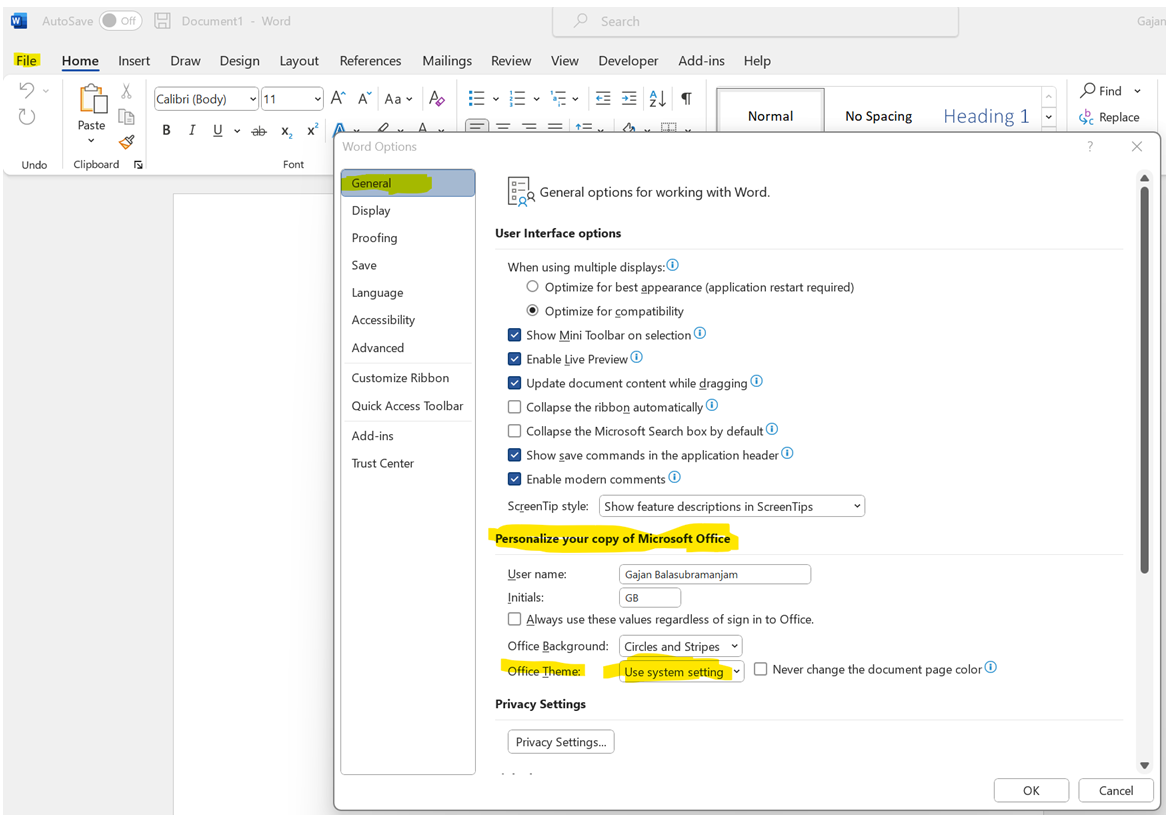
Click the File tab => Options à General => Office Theme => Select “Use System Setting”.

Set Standard Mode to fix Dark Mode problem

Close and reopen the MS Word application. The data will appear as expected.