EN

This happens for the Aligned Elements Windows client on Windows 11.

The error says "An unexpected error occurred. Please mail the logfile to This email address is being protected from spambots. You need JavaScript enabled to view it.. ..." 

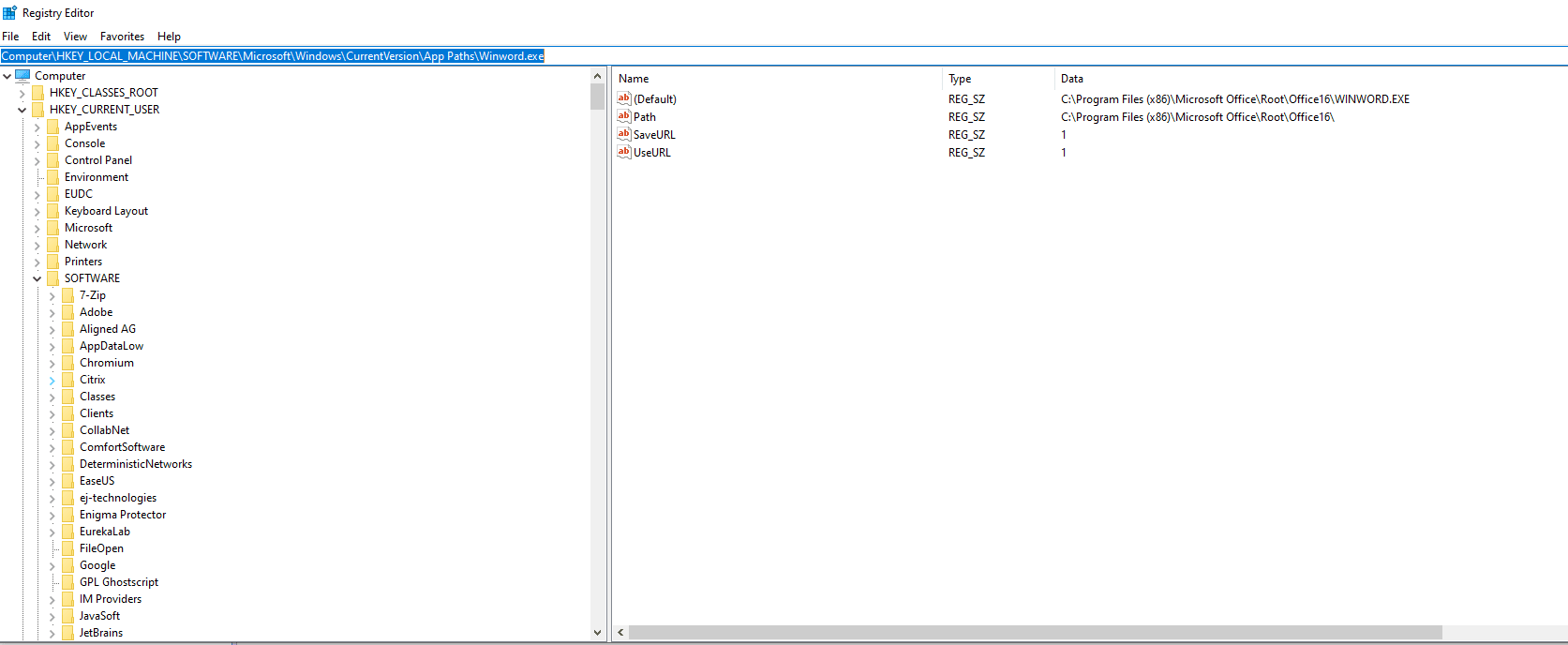
On Windows 11 machines, the Microsoft Word installer sometimes do not set the path to the “Winword.exe” in the registry.

Consequently, Aligned Elements fails to start “Winword.exe” since its path is unknown to AE.

How to solve it

Manually adding registry values for this makes the problem go away.

The image below displays the expected registry settings:

Registry_For_Word.PNG

When using the Aligned Elements Windows Client, starting the Word Add-In displays the following error:

Incorrect_Installer.PNG

The error is an indication of that Word is installed as 64-bit on this computer but the Aligned Elements application expects a 32-bit Word application.

How to solve it

First, verify that you are using a Word 64 bit version.

Then uninstall your current Aligned Elements application.

Go to the Download Setups page and make sure you download the "Aligned Elements Windows Client - Word as 64 bit" set up. Make sure you download the correct version!   

If the Aligned Elements Web Client Word Add-In does not display any icons, proceed as follows:

1) Open MS Word.

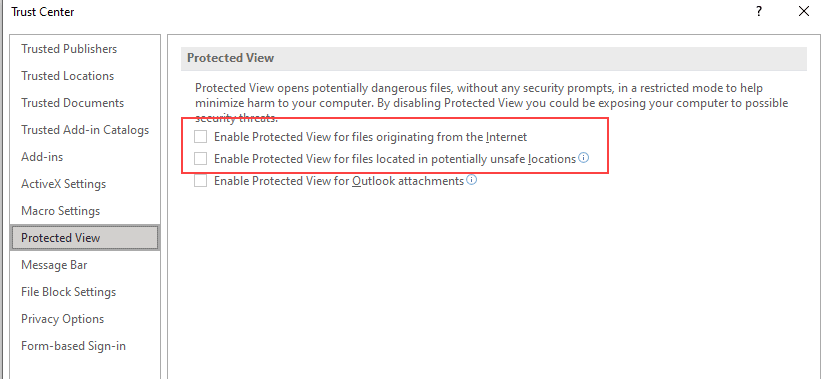
2) Click File => Options => Trust Center => Protected View

3) Make sure that the first to checkboxes ( "Enabled Protected View for files originating from the Internet" and "Enabled Protected View for files located in potentially unsafe locations") are not selected.

TrustCenter

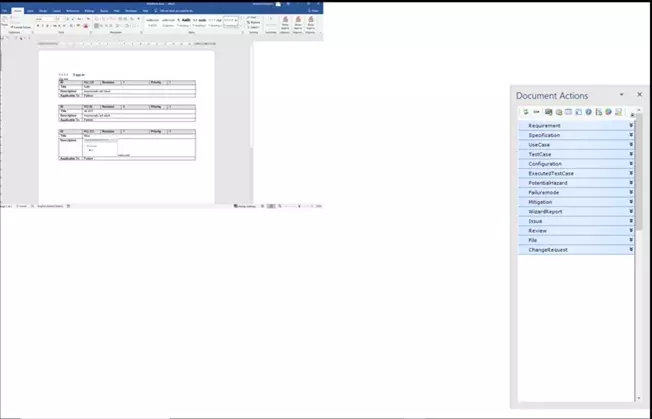
Word documents and the Word Add-in displays in an awkward manner in Windows 10, version 20H2

How to solve it:

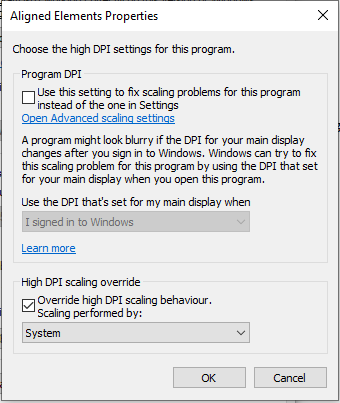
1) Find the Aligned Elements shortcut

2) Display Properties => Compatibility Tab

3) At the bottom of the tab click "Change high DPI settings"

4) At the bottom of the displayed dialog, in the section "High DPI scaling override", if the check box for "Override high DPI scaling" is selected, select "System" (and not e.g. "System (Enhanced)") in the dropdown.

If a VSTO customization cannot be uninstalled with the regular Control Panel - Apps & Features dialog, then access the "old" Programs and Features Dialog by clicking "Programs and Features" under the section "Related Settings" in the Apps & Feature dialog of the Control Panel. In this dialog, the VSTO customization can be uninstalled.

If the Aligned Elements installer complains about your installed Word application, it might have to do with how it was installed.

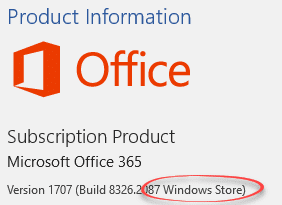
Aligned Elements is incompatible with Microsoft Word if Word is installed from the Windows Store / Micorosft App Store.

To check if your Word is installed from the Windows Store, click File -> Account.

If the dialog mentions "Windows Store", then the application was installed as an App from the Windows Store.


office 2016 for windows store a closer look 14933

If you possess an Office 365 license, you can install MS Word as a regular desktop application (Microsoft recommends the 32 bit version) instead (and it would be installed in “C:\Program Files (x86)\Microsoft Office\root\Office16” or similar). The integration provided from Aligned Elements is built on Microsoft technology but only works with Word distributed as a desktop application.

E.g. MS Word 2016 Desktop Application can be downloaded from here.

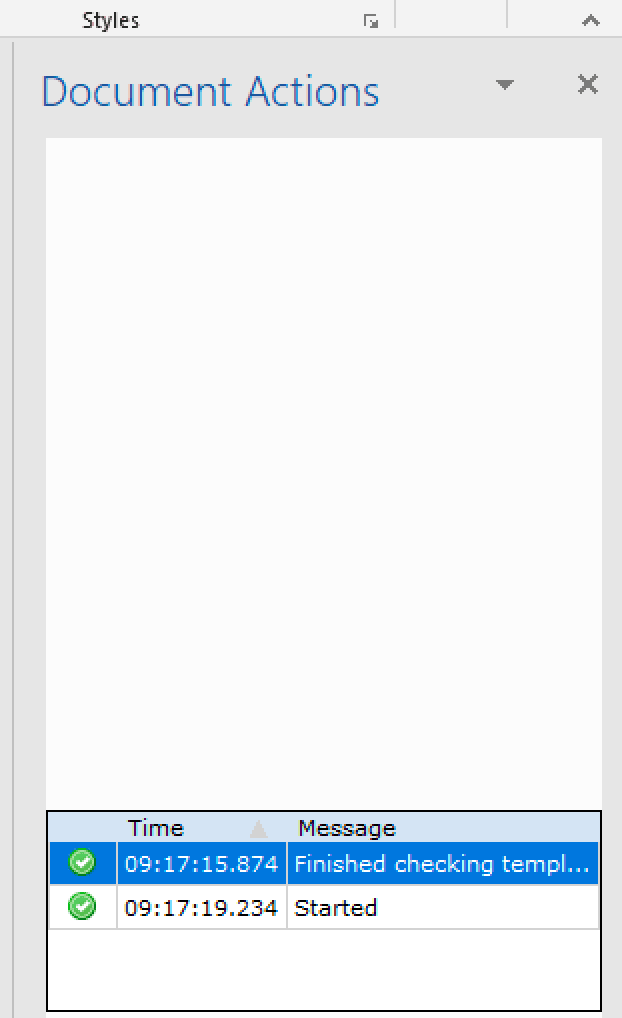
After starting MS Word, the Aligned Elements Word Add-on/Plugin is visible, but it does not show the Navigation Bar or Project Explorer, only the Message View at the bottom of the pane: 

Empty Action Pane

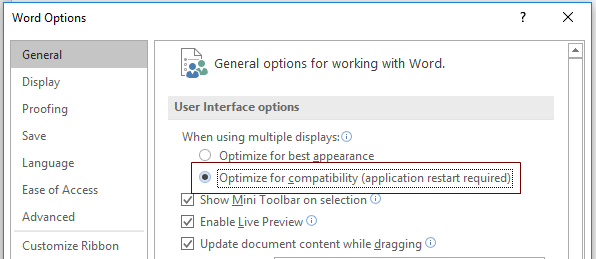
In order to fix this, select Main Menu => File => Options.

In the dialog, select the section called "General".

In the top most section called the "User Interface options", tick/select the check box for "Optimize for compatibility" to activate it.

Word Options

When completed, restart MS Word for the change to take effect.

You need to define the AE application directory as “Trusted Location”. If you hold the mouse over the file path string in the dialog "Security Alert" the Aligned Elements application directory is displayed. Click “Open the Trust Center” in the dialog (down to the left) and added the application path as a trusted location and add the option “Trust all subfolders”.

Note! For Word 2003, you must use Word 2003 Professional SP1 or later. Word 2003 Standard or Small Business will not work.

There are three possible reasons: a) the word templates are corrupt or b) the Action Pane is hidden by Word but accessible or c) it is inaccessible all together. Click Ctrl-F1 in word (Word 2003) to attempt access the general task pane and see if you can find the Action Pane in the drop down list.

If you cannot see it, it might also be the case that the Action Pane Active X component is blocked on your computer. Check for the registry key:

HKEY_LOCAL_MACHINE\SOFTWARE\Microsoft\Internet Explorer\ActiveX Compatibility\{5f61f809-422a-4152-91f5-9ec1b935efd7}

If you find it, delete it and start Aligned Elements again. This time the Action Pane should be accessible in Word.

If this does not correct the error, you need to reinstall Visual Studio Tools For Office. VSTO 2005 SE can be downloaded here. When you have downloaded and installed VSTO, then repeat the installation of Aligned Elements.

If that also fails, then send us the logfiles and we'll check if the templates are corrupt.

If it is the case that your windows user name contains a blank space (like "Peter Stein"), then Aligned Elements is not able to copy the customizations correctly. We are working on a solution for this problem.